
7.7 KiB
Install Intel® Distribution of OpenVINO™ Toolkit for Linux Using APT Repository
@sphinxdirective
With the OpenVINO™ 2022.3 release, you can install OpenVINO Runtime on Linux using the APT repository. OpenVINO™ Development Tools can be installed via PyPI only. See :ref:Installing Additional Components <intall additional components apt> for more information.
See the Release Notes <https://www.intel.com/content/www/us/en/developer/articles/release-notes/openvino-2022-3-lts-relnotes.html>_ for more information on updates in the latest release.
Installing OpenVINO Runtime from APT is recommended for C++ developers. If you are working with Python, the PyPI package has everything needed for Python development and deployment on CPU and GPUs. Visit the :doc:Install OpenVINO from PyPI <openvino_docs_install_guides_installing_openvino_pip> page for instructions on how to install OpenVINO Runtime for Python using PyPI.
.. warning::
By downloading and using this container and the included software, you agree to the terms and conditions of the software license agreements <https://software.intel.com/content/dam/develop/external/us/en/documents/intel-openvino-license-agreements.pdf>_.
@endsphinxdirective
Prerequisites
@sphinxdirective
.. tab:: System Requirements
| Full requirement listing is available in:
| System Requirements Page <https://www.intel.com/content/www/us/en/developer/tools/openvino-toolkit/system-requirements.html>_
.. tab:: Processor Notes
Processor graphics are not included in all processors.
See Product Specifications_ for information about your processor.
.. _Product Specifications: https://ark.intel.com/
.. tab:: Software Requirements
CMake 3.13 or higher, 64-bit <https://cmake.org/download/>_- GCC 7.5.0 (for Ubuntu 18.04) or GCC 9.3.0 (for Ubuntu 20.04)
Python 3.7 - 3.10, 64-bit <https://www.python.org/downloads/>_
.. _install runtime apt:
@endsphinxdirective
Installing OpenVINO Runtime
Step 1: Set Up the OpenVINO Toolkit APT Repository
@sphinxdirective
#. Install the GPG key for the repository
a. Download the GPG-PUB-KEY-INTEL-SW-PRODUCTS.PUB <https://apt.repos.intel.com/intel-gpg-keys/GPG-PUB-KEY-INTEL-SW-PRODUCTS.PUB>_
  You can also use the following command:

  .. code-block:: sh

     wget https://apt.repos.intel.com/intel-gpg-keys/GPG-PUB-KEY-INTEL-SW-PRODUCTS.PUB
b. Add this key to the system keyring:
  .. code-block:: sh

     sudo apt-key add GPG-PUB-KEY-INTEL-SW-PRODUCTS.PUB

  .. note::

     You might need to install GnuPG:

     .. code-block::

        sudo apt-get install gnupg
#. Add the repository via the following command:
.. tab:: Ubuntu 18
  .. code-block:: sh

     echo "deb https://apt.repos.intel.com/openvino/2022 bionic main" | sudo tee /etc/apt/sources.list.d/intel-openvino-2022.list
.. tab:: Ubuntu 20
  .. code-block:: sh

     echo "deb https://apt.repos.intel.com/openvino/2022 focal main" | sudo tee /etc/apt/sources.list.d/intel-openvino-2022.list
#. Update the list of packages via the update command:
.. code-block:: sh
sudo apt update
#. Verify that the APT repository is properly set up. Run the apt-cache command to see a list of all available OpenVINO packages and components:
.. code-block:: sh
apt-cache search openvino
@endsphinxdirective
Step 2: Install OpenVINO Runtime Using the APT Package Manager
Install OpenVINO Runtime
@sphinxdirective
.. tab:: The Latest Version
Run the following command:
.. code-block:: sh
sudo apt install openvino
.. tab:: A Specific Version
#. Get a list of OpenVINO packages available for installation:
  .. code-block:: sh

     sudo apt-cache search openvino
#. Install a specific version of an OpenVINO package:
  .. code-block:: sh

     sudo apt install openvino-<VERSION>.<UPDATE>.<PATCH>

  For example:

  .. code-block:: sh

     sudo apt install openvino-2022.3.0
.. note::
You can use --no-install-recommends option to install only required packages. Keep in mind that the build tools must be installed separately if you want to compile the samples.
@endsphinxdirective
Check for Installed Packages and Versions
@sphinxdirective
Run the following command:
.. code-block:: sh
apt list --installed | grep openvino
.. _intall additional components apt:
@endsphinxdirective
Step 3 (Optional): Install Additional Components
@sphinxdirective
OpenVINO Development Tools is a set of utilities for working with OpenVINO and OpenVINO models. It provides tools like Model Optimizer, Benchmark Tool, Post-Training Optimization Tool, and Open Model Zoo Downloader. If you installed OpenVINO Runtime using APT, OpenVINO Development Tools must be installed separately.
See the For C++ Developers section on the :doc:Install OpenVINO Development Tools <openvino_docs_install_guides_install_dev_tools> page for instructions.
@endsphinxdirective
Step 4 (Optional): Configure Inference on Non-CPU Devices
@sphinxdirective
To enable the toolkit components to use processor graphics (GPU) on your system, follow the steps in :doc:GPU Setup Guide <openvino_docs_install_guides_configurations_for_intel_gpu>.
@endsphinxdirective
Step 5: Build Samples
@sphinxdirective
To build the C++ or C sample applications for Linux, run the build_samples.sh script:
.. tab:: C++
.. code-block:: sh
/usr/share/openvino/samples/cpp/build_samples.sh
.. tab:: C
.. code-block:: sh
/usr/share/openvino/samples/c/build_samples.sh
For more information, refer to :ref:Build the Sample Applications on Linux <build-samples-linux>.
@endsphinxdirective
Uninstalling OpenVINO Runtime
@sphinxdirective
To uninstall OpenVINO Runtime via APT, run the following command based on your needs:
.. tab:: The Latest Version
.. code-block:: sh
sudo apt autoremove openvino
.. tab:: A Specific Version
.. code-block:: sh
sudo apt autoremove openvino-<VERSION>.<UPDATE>.<PATCH>
For example:
.. code-block:: sh
sudo apt autoremove openvino-2022.3.0
@endsphinxdirective
What's Next?
@sphinxdirective
Now that you've installed OpenVINO Runtime, you're ready to run your own machine learning applications! Learn more about how to integrate a model in OpenVINO applications by trying out the following tutorials:
-
Try the
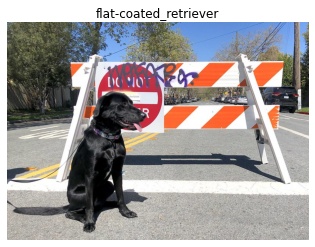
C++ Quick Start Example <openvino_docs_get_started_get_started_demos.html>_ for step-by-step instructions on building and running a basic image classification C++ application... image:: https://user-images.githubusercontent.com/36741649/127170593-86976dc3-e5e4-40be-b0a6-206379cd7df5.jpg :width: 400
-
Visit the :ref:
Samples <code samples>page for other C++ example applications to get you started with OpenVINO, such as:Basic object detection with the Hello Reshape SSD C++ sample <openvino_inference_engine_samples_hello_reshape_ssd_README.html>_Automatic speech recognition C++ sample <openvino_inference_engine_samples_speech_sample_README.html>_
You can also try the following things:
- Learn more about :doc:
OpenVINO Workflow <openvino_workflow>. - To prepare your models for working with OpenVINO, see :doc:
Model Preparation <openvino_docs_model_processing_introduction>. - See pre-trained deep learning models in our :doc:
Open Model Zoo <model_zoo>. - Learn more about :doc:
Inference with OpenVINO Runtime <openvino_docs_OV_UG_OV_Runtime_User_Guide>. - See sample applications in :doc:
OpenVINO toolkit Samples Overview <openvino_docs_OV_UG_Samples_Overview>. - Take a glance at the OpenVINO product home page: https://software.intel.com/en-us/openvino-toolkit.
@endsphinxdirective