 3e0ea0ac93
* reintroducing apt and yum

* fix indents and create tabs

fixing indent in apt
creating tabs in yum article

* Update installing-openvino-yum.md

* tabbed content

Inserting installation steps into tabs.
Correcting formatting.

* correcting indents

* correct indent

* indent fix

* Update docs/install_guides/installing-model-dev-tools.md

Co-authored-by: Yuan Xu <yuan1.xu@intel.com>

* removing non-cpu dev

Removing GNA, NCS2, VPU from Step 5 in YUM article.
Correcting links to Python.

* add apt and yum for installation

* revising openvino-dev installation

* removing opencv from apt

* remove opencv from yum

* removing non-cpu devs

* Update installing-model-dev-tools.md

* update disclaimer

* openvino development tools

correcting the name

* build samples sections

* add architecture

* remove install details yum

* remove install details apt

* reflink fix

* removing ncs2

* add dependencies

* install parametere

* move note

* Update installing-model-dev-tools.md

* Update installing-openvino-apt.md

* Update installing-openvino-yum.md

* Update docs/install_guides/installing-openvino-apt.md

Co-authored-by: Yuan Xu <yuan1.xu@intel.com>

* Update docs/install_guides/installing-openvino-apt.md

Co-authored-by: Yuan Xu <yuan1.xu@intel.com>

* Update docs/install_guides/installing-openvino-yum.md

Co-authored-by: Yuan Xu <yuan1.xu@intel.com>

* Update docs/install_guides/installing-model-dev-tools.md

* Update installing-openvino-apt.md

Co-authored-by: Yuan Xu <yuan1.xu@intel.com>
15 KiB
Get Started with C++ Samples
The guide presents a basic workflow for building and running C++ code samples in OpenVINO. Note that these steps will not work with the Python samples.
To get started, you must first install OpenVINO Runtime, install OpenVINO Development tools, and build the sample applications. See the Prerequisites section for instructions.
Once the prerequisites have been installed, perform the following steps:
- Use Model Downloader to download a suitable model.
- Convert the model with Model Optimizer.
- Download media files to run inference.
- Run inference with the Image Classification sample application and see the results.
Prerequisites
Install OpenVINO Runtime
To use sample applications, install OpenVINO Runtime via one of the following distribution channels (other distributions do not include sample files):
- Archive files (recommended) - [Linux](@ref openvino_docs_install_guides_installing_openvino_from_archive_linux) | [Windows](@ref openvino_docs_install_guides_installing_openvino_from_archive_windows) | [macOS](@ref openvino_docs_install_guides_installing_openvino_from_archive_macos)
- [APT](@ref openvino_docs_install_guides_installing_openvino_apt) or [YUM](@ref openvino_docs_install_guides_installing_openvino_yum) for Linux
- Docker image - [Linux](@ref openvino_docs_install_guides_installing_openvino_docker_linux) | [Windows](@ref openvino_docs_install_guides_installing_openvino_docker_windows)
- Build from source
Make sure that you also install OpenCV, as it's required for running sample applications.
Install OpenVINO Development Tools
To install OpenVINO Development Tools, follow the instructions for C++ developers on the Install OpenVINO Development Tools page. This guide uses the googlenet-v1 model from the Caffe framework, therefore, when you get to Step 4 of the installation, run the following command to install OpenVINO with the Caffe requirements:
pip install openvino-dev[caffe]
Build Samples
To build OpenVINO samples, follow the build instructions for your operating system on the OpenVINO Samples page. The build will take about 5-10 minutes, depending on your system.
Step 1: Download the Models
You must have a model that is specific for your inference task. Example model types are:
- Classification (AlexNet, GoogleNet, SqueezeNet, others): Detects one type of element in an image
- Object Detection (SSD, YOLO): Draws bounding boxes around multiple types of objects in an image
- Custom: Often based on SSD
You can use one of the following options to find a model suitable for OpenVINO:
- Download public or Intel pre-trained models from [Open Model Zoo](@ref model_zoo) using [Model Downloader tool](@ref omz_tools_downloader)
- Download from GitHub, Caffe Zoo, TensorFlow Zoo, etc.
- Train your own model with machine learning tools
This guide uses OpenVINO Model Downloader to get pre-trained models. You can use one of the following commands to find a model with this method:
-
List the models available in the downloader.
omz_info_dumper --print_all -
Use
grepto list models that have a specific name pattern (e.g.ssd-mobilenet,yolo). Replace<model_name>with the name of the model.omz_info_dumper --print_all | grep <model_name> -
Use Model Downloader to download models. Replace
<models_dir>with the directory to download the model to and<model_name>with the name of the model.omz_downloader --name <model_name> --output_dir <models_dir>
This guide used the following model to run the Image Classification Sample:
| Model Name | Code Sample or Demo App |
|---|---|
googlenet-v1 |
Image Classification Sample |
@sphinxdirective
.. dropdown:: Click to view how to download the GoogleNet v1 Caffe model
To download the GoogleNet v1 Caffe model to the models folder:
.. tab:: Linux
  .. code-block:: sh

     omz_downloader --name googlenet-v1 --output_dir ~/models
.. tab:: Windows
  .. code-block:: bat

     omz_downloader --name googlenet-v1 --output_dir %USERPROFILE%\Documents\models
.. tab:: macOS
  .. code-block:: sh

     omz_downloader --name googlenet-v1 --output_dir ~/models
Your screen will look similar to this after the download and show the paths of downloaded files:
.. tab:: Linux
  .. code-block:: sh

     ###############|| Downloading models ||###############

     ========= Downloading /home/username/models/public/googlenet-v1/googlenet-v1.prototxt

     ========= Downloading /home/username/models/public/googlenet-v1/googlenet-v1.caffemodel
     ... 100%, 4834 KB, 3157 KB/s, 1 seconds passed

     ###############|| Post processing ||###############

     ========= Replacing text in /home/username/models/public/googlenet-v1/googlenet-v1.prototxt =========
.. tab:: Windows
  .. code-block:: bat

     ################|| Downloading models ||################

     ========== Downloading C:\Users\username\Documents\models\public\googlenet-v1\googlenet-v1.prototxt
     ... 100%, 9 KB, ? KB/s, 0 seconds passed

     ========== Downloading C:\Users\username\Documents\models\public\googlenet-v1\googlenet-v1.caffemodel
     ... 100%, 4834 KB, 571 KB/s, 8 seconds passed

     ################|| Post-processing ||################

     ========== Replacing text in C:\Users\username\Documents\models\public\googlenet-v1\googlenet-v1.prototxt
.. tab:: macOS
  .. code-block:: sh

     ###############|| Downloading models ||###############

     ========= Downloading /Users/username/models/public/googlenet-v1/googlenet-v1.prototxt
     ... 100%, 9 KB, 44058 KB/s, 0 seconds passed

     ========= Downloading /Users/username/models/public/googlenet-v1/googlenet-v1.caffemodel
     ... 100%, 4834 KB, 4877 KB/s, 0 seconds passed

     ###############|| Post processing ||###############

     ========= Replacing text in /Users/username/models/public/googlenet-v1/googlenet-v1.prototxt =========
@endsphinxdirective
Step 2: Convert the Model with Model Optimizer
In this step, your trained models are ready to run through the Model Optimizer to convert them to the IR (Intermediate Representation) format. For most model types, this is required before using OpenVINO Runtime with the model.
Models in the IR format always include an .xml and .bin file and may also include other files such as .json or .mapping. Make sure you have these files together in a single directory so OpenVINO Runtime can find them.
REQUIRED: model_name.xml
REQUIRED: model_name.bin
OPTIONAL: model_name.json, model_name.mapping, etc.
This tutorial uses the public GoogleNet v1 Caffe model to run the Image Classification Sample. See the example in the Download Models section of this page to learn how to download this model.
The googlenet-v1 model is downloaded in the Caffe format. You must use Model Optimizer to convert the model to IR.
Create an <ir_dir> directory to contain the model's Intermediate Representation (IR).
@sphinxdirective
.. tab:: Linux
.. code-block:: sh
mkdir ~/ir
.. tab:: Windows
.. code-block:: bat
mkdir %USERPROFILE%\Documents\ir
.. tab:: macOS
.. code-block:: sh
mkdir ~/ir
@endsphinxdirective
To save disk space for your IR file, you can apply weights compression to FP16. To generate an IR with FP16 weights, run Model Optimizer with the --compress_to_fp16 option.
Generic Model Optimizer script:
mo --input_model <model_dir>/<model_file>
The IR files produced by the script are written to the <ir_dir> directory.
The command with most placeholders filled in and FP16 precision:
@sphinxdirective
.. tab:: Linux
.. code-block:: sh
mo --input_model ~/models/public/googlenet-v1/googlenet-v1.caffemodel --compress_to_fp16 --output_dir ~/ir
.. tab:: Windows
.. code-block:: bat
mo --input_model %USERPROFILE%\Documents\models\public\googlenet-v1\googlenet-v1.caffemodel --compress_to_fp16 --output_dir %USERPROFILE%\Documents\ir
.. tab:: macOS
.. code-block:: sh
mo --input_model ~/models/public/googlenet-v1/googlenet-v1.caffemodel --compress_to_fp16 --output_dir ~/ir
@endsphinxdirective
Step 3: Download a Video or a Photo as Media
Most of the samples require you to provide an image or a video as the input to run the model on. You can get them from sites like Pexels or Google Images.
As an alternative, OpenVINO also provides several sample images and videos for you to run code samples and demo applications:
Step 4: Run Inference on a Sample
To run the Image Classification code sample with an input image using the IR model:
-
Set up the OpenVINO environment variables: @sphinxdirective .. tab:: Linux
.. code-block:: sh
source <INSTALL_DIR>/setupvars.sh
.. tab:: Windows
.. code-block:: bat
<INSTALL_DIR>\setupvars.bat
.. tab:: macOS
.. code-block:: sh
source <INSTALL_DIR>/setupvars.sh
@endsphinxdirective
-
Go to the code samples release directory created when you built the samples earlier: @sphinxdirective .. tab:: Linux
.. code-block:: sh
cd ~/openvino_cpp_samples_build/intel64/Release
.. tab:: Windows
.. code-block:: bat
cd %USERPROFILE%\Documents\Intel\OpenVINO\openvino_samples_build\intel64\Release
.. tab:: macOS
.. code-block:: sh
cd ~/openvino_cpp_samples_build/intel64/Release
@endsphinxdirective
- Run the code sample executable, specifying the input media file, the IR for your model, and a target device for performing inference: @sphinxdirective
.. tab:: Linux
.. code-block:: sh
classification_sample_async -i <path_to_media> -m <path_to_model> -d <target_device>
.. tab:: Windows
.. code-block:: bat
classification_sample_async.exe -i <path_to_media> -m <path_to_model> -d <target_device>
.. tab:: macOS
.. code-block:: sh
classification_sample_async -i <path_to_media> -m <path_to_model> -d <target_device>
@endsphinxdirective
Examples
Running Inference on CPU
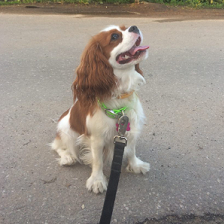
The following command shows how to run the Image Classification Code Sample using the dog.bmp file as an input image, the model in IR format from the ir directory, and the CPU as the target hardware:
@sphinxdirective .. tab:: Linux
.. code-block:: sh
./classification_sample_async -i ~/Downloads/dog.bmp -m ~/ir/googlenet-v1.xml -d CPU
.. tab:: Windows
.. code-block:: bat
.\classification_sample_async.exe -i %USERPROFILE%\Downloads\dog.bmp -m %USERPROFILE%\Documents\ir\googlenet-v1.xml -d CPU
.. tab:: macOS
.. code-block:: sh
./classification_sample_async -i ~/Downloads/dog.bmp -m ~/ir/googlenet-v1.xml -d CPU
@endsphinxdirective
When the sample application is complete, you are given the label and confidence for the top 10 categories. The input image and sample output of the inference results is shown below:
@sphinxdirective
.. code-block:: sh
Top 10 results:
Image dog.bmp
  classid probability label
  ------- ----------- -----
  156     0.6875963   Blenheim spaniel
  215     0.0868125   Brittany spaniel
  218     0.0784114   Welsh springer spaniel
  212     0.0597296   English setter
  217     0.0212105   English springer, English springer spaniel
  219     0.0194193   cocker spaniel, English cocker spaniel, cocker
  247     0.0086272   Saint Bernard, St Bernard
  157     0.0058511   papillon
  216     0.0057589   clumber, clumber spaniel
  154     0.0052615   Pekinese, Pekingese, Peke
@endsphinxdirective
The following two examples show how to run the same sample using GPU or MYRIAD as the target device.
Running Inference on GPU
Note
: Running inference on Intel® Processor Graphics (GPU) requires additional hardware configuration steps, as described earlier on this page. Running on GPU is not compatible with macOS.
@sphinxdirective .. tab:: Linux
.. code-block:: sh
./classification_sample_async -i ~/Downloads/dog.bmp -m ~/ir/googlenet-v1.xml -d GPU
.. tab:: Windows
.. code-block:: bat
.\classification_sample_async.exe -i %USERPROFILE%\Downloads\dog.bmp -m %USERPROFILE%\Documents\ir\googlenet-v1.xml -d GPU
@endsphinxdirective
Running Inference on MYRIAD
Note
: Running inference on VPU devices (Intel® Movidius™ Neural Compute Stick or Intel® Neural Compute Stick 2) with the MYRIAD plugin requires additional hardware configuration steps, as described earlier on this page.
@sphinxdirective .. tab:: Linux
.. code-block:: sh
./classification_sample_async -i ~/Downloads/dog.bmp -m ~/ir/googlenet-v1.xml -d MYRIAD
.. tab:: Windows
.. code-block:: bat
.\classification_sample_async.exe -i %USERPROFILE%\Downloads\dog.bmp -m %USERPROFILE%\Documents\ir\googlenet-v1.xml -d MYRIAD
.. tab:: macOS
.. code-block:: sh
./classification_sample_async -i ~/Downloads/dog.bmp -m ~/ir/googlenet-v1.xml -d MYRIAD
@endsphinxdirective
Other Demos and Samples
See the Samples page for more sample applications. Each sample page explains how the application works and shows how to run it. Use the samples as a starting point that can be adapted for your own application.
OpenVINO also provides demo applications for using off-the-shelf models from [Open Model Zoo](@ref model_zoo). Visit [Open Model Zoo Demos](@ref omz_demos) if you'd like to see even more examples of how to run model inference with the OpenVINO API.