
4.1 KiB
Install OpenVINO™ Runtime from Conda Forge
@sphinxdirective
.. note::
Installing OpenVINO Runtime from Conda Forge is recommended for C++ developers, as it provides only the C++ Runtime API.
If you work with Python, consider :doc:installing OpenVINO from PyPI <openvino_docs_install_guides_installing_openvino_pip>
.. tab:: System Requirements
| Full requirement listing is available in:
| System Requirements Page <https://www.intel.com/content/www/us/en/developer/tools/openvino-toolkit/system-requirements.html>__
.. comment to publish in the future, when gpu support comes back:
  .. tab:: Processor Notes

       | Not all Intel CPUs include integrated graphics processors.
       | See `Product Specifications <https://ark.intel.com/>`__ for information about your hardware.
.. tab:: Software
There are many ways to work with Conda. Before you proceed, learn more about it on the
Anaconda distribution page <https://www.anaconda.com/products/individual/>__
Installing OpenVINO Runtime with Anaconda Package Manager ############################################################
-
Set up the Anaconda environment (Python 3.10 used as an example):
.. code-block:: sh
conda create --name py310 python=3.10
.. code-block:: sh
conda activate py310
-
Update it to the latest version:
.. code-block:: sh
conda update --all
-
Install the OpenVINO Runtime package:
.. code-block:: sh
conda install -c conda-forge openvino=2023.0.0
Congratulations! You have finished installing OpenVINO Runtime.
Compiling with OpenVINO Runtime from Conda-Forge on Linux ###########################################################
When linking OpenVINO libraries from Conda on Linux, ensure that you have the necessary Conda compilers installed. To do so, run the following command in your Conda environment:
.. code-block:: sh
conda install cmake c-compiler cxx-compiler make
It is crucial to reactivate your Conda environment after installing the compilers. This step ensures that all the environment variables are set correctly for successful linkage.
To reactivate your Conda environment, execute the following command:
.. code-block:: sh
conda activate py310
Once you have reactivated your Conda environment, make sure that all the necessary environment variables are properly set and proceed with linking the OpenVINO libraries.
Uninstalling OpenVINO™ Runtime ###########################################################
Once OpenVINO Runtime is installed via Conda, you can remove it using the following command, with the proper OpenVINO version number:
.. code-block:: sh
conda remove openvino=2023.0.0
What's Next? ############################################################
Now that you've installed OpenVINO Runtime, you are ready to run your own machine learning applications! To learn more about how to integrate a model in OpenVINO applications, try out some tutorials and sample applications.
Try the :doc:C++ Quick Start Example <openvino_docs_get_started_get_started_demos> for step-by-step instructions
on building and running a basic image classification C++ application.
.. image:: https://user-images.githubusercontent.com/36741649/127170593-86976dc3-e5e4-40be-b0a6-206379cd7df5.jpg :width: 400
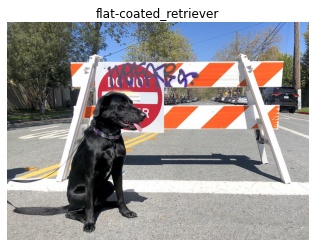
Visit the :doc:Samples <openvino_docs_OV_UG_Samples_Overview> page for other C++ example applications to get you started with OpenVINO, such as:
Basic object detection with the Hello Reshape SSD C++ sample <openvino_inference_engine_samples_hello_reshape_ssd_README.html>__Automatic speech recognition C++ sample <openvino_inference_engine_samples_speech_sample_README.html>__
Additional Resources ###########################################################
OpenVINO Runtime Conda Forge <https://anaconda.org/conda-forge/openvino>__- :doc:
OpenVINO™ Toolkit Samples Overview <openvino_docs_OV_UG_Samples_Overview> OpenVINO Installation Selector Tool <https://www.intel.com/content/www/us/en/developer/tools/openvino-toolkit/download.html>__
@endsphinxdirective