
9.5 KiB
Install OpenVINO™ Runtime for Raspbian OS
@sphinxdirective
.. note::
- These steps apply to Raspbian OS (the official OS for Raspberry Pi boards).
- These steps have been validated with Raspberry Pi 3.
- There is also an open-source version of OpenVINO™ that can be compiled for arch64 (see
build instructions <https://github.com/openvinotoolkit/openvino/blob/master/docs/dev/build_raspbian.md>_).
Development and Target Systems ###############################
.. tab:: System Requirements
| Full requirement listing is available in:
| System Requirements Page <https://www.intel.com/content/www/us/en/developer/tools/openvino-toolkit/system-requirements.html>_
.. tab:: Software Requirements
- CMake 3.10 or higher
- Python 3.7 - 3.10
.. _install-openvino:
Step 1: Download and Install OpenVINO Runtime #############################################
#. Open the Terminal or your preferred console application. #. Create an installation folder for OpenVINO. If the folder already exists, skip this step.
.. code-block:: sh
sudo mkdir -p /opt/intel
.. note::
The ``/opt/intel`` path is the recommended folder path for administrators or root users. If you prefer to install OpenVINO in regular userspace, the recommended path is ``/home/<USER>/intel``. You may use a different path if desired.
#. Go to your ~/Downloads directory and download OpenVINO Runtime archive file for Debian from OpenVINO package repository <https://storage.openvinotoolkit.org/repositories/openvino/packages/2022.3/linux/>_.
.. tab:: ARM 32-bit
  .. code-block:: sh

     cd ~/Downloads/
     sudo wget https://storage.openvinotoolkit.org/repositories/openvino/packages/2022.3/linux/l_openvino_toolkit_debian9_2022.3.0.9052.9752fafe8eb_armhf.tgz -O openvino_2022.3.0.tgz
.. tab:: ARM 64-bit
  .. code-block:: sh

     cd ~/Downloads/
     sudo wget https://storage.openvinotoolkit.org/repositories/openvino/packages/2022.3/linux/l_openvino_toolkit_debian9_2022.3.0.9052.9752fafe8eb_arm64.tgz -O openvino_2022.3.0.tgz
#. Extract the archive file and move it to the installation folder:
.. tab:: ARM 32-bit
  .. code-block:: sh

     sudo tar -xf openvino_2022.3.0.tgz
     sudo mv l_openvino_toolkit_debian9_2022.3.0.9052.9752fafe8eb_armhf /opt/intel/openvino_2022.3.0
.. tab:: ARM 64-bit
  .. code-block:: sh

     sudo tar -xf openvino_2022.3.0.tgz
     sudo mv l_openvino_toolkit_debian9_2022.3.0.9052.9752fafe8eb_arm64 /opt/intel/openvino_2022.3.0
#. Install required system dependencies on Linux. To do this, OpenVINO provides a script in the extracted installation directory. Run the following command:
.. code-block:: sh
sudo -E ./install_dependencies/install_openvino_dependencies.sh
#. For simplicity, it is useful to create a symbolic link as below:
.. code-block:: sh
sudo ln -s openvino_2022.3.0 openvino_2022
.. note::
If you have already installed a previous release of OpenVINO 2022, a symbolic link to the ``openvino_2022`` folder may already exist. Unlink the previous link with ``sudo unlink openvino_2022``, and then re-run the command above.
Congratulations, you finished the installation! The /opt/intel/openvino_2022 folder now contains the core components for OpenVINO. If you used a different path in Step 2, for example, /home/<USER>/intel/, OpenVINO is then installed in /home/<USER>/intel/openvino_2022. The path to the openvino_2022 directory is also referred as <INSTALL_DIR> throughout the OpenVINO documentation.
.. _install-external-dependencies:
Step 2: Install External Software Dependencies ##############################################
CMake version 3.10 or higher is required for building the OpenVINO™ toolkit sample application. To install, open a Terminal window and run the following command:
.. code-block:: sh
sudo apt install cmake
CMake is installed. Continue to the next section to set the environment variables.
.. _set-the-environment-variables-raspbian:
Step 3: Set the Environment Variables #####################################
You must update several environment variables before you can compile and run OpenVINO applications. Open a terminal window and run the setupvars.sh script as shown below to temporarily set your environment variables. If your <INSTALL_DIR> is not /opt/intel/openvino_2022, use the correct one instead.
.. code-block:: sh
source /opt/intel/openvino_2022/setupvars.sh
If you have more than one OpenVINO version on your machine, you can easily switch its version by sourcing the setupvars.sh of your choice.
.. note::
The above command must be re-run every time you start a new terminal session. To set up Linux to automatically run the command every time a new terminal is opened, open ~/.bashrc in your favorite editor and add source /opt/intel/openvino_2022/setupvars.sh after the last line. Next time when you open a terminal, you will see [setupvars.sh] OpenVINO™ environment initialized. Changing .bashrc is not recommended when you have multiple OpenVINO versions on your machine and want to switch among them.
The environment variables are set. Continue to the next section if you want to download any additional components.
.. _model-optimizer:
Step 4 (Optional): Install Additional Components ################################################
If you want to use your model for inference, the model must be converted to the .bin and .xml Intermediate Representation (IR) files that are used as input by OpenVINO Runtime. To get the optimized models, you can use one of the following options:
-
Download public and Intel's pre-trained models from the
Open Model Zoo <https://github.com/openvinotoolkit/open_model_zoo>_ using :doc:Model Downloader tool <omz_tools_downloader>. For more information on pre-trained models, see :doc:Pre-Trained Models Documentation <omz_models_group_intel>.- OpenCV is necessary to run demos from Open Model Zoo (OMZ). Some OpenVINO samples can also extend their capabilities when compiled with OpenCV as a dependency. To install OpenCV for OpenVINO, see the
instructions on Github <https://github.com/opencv/opencv/wiki/BuildOpenCV4OpenVINO)>_.
- OpenCV is necessary to run demos from Open Model Zoo (OMZ). Some OpenVINO samples can also extend their capabilities when compiled with OpenCV as a dependency. To install OpenCV for OpenVINO, see the
-
Convert the models using the Model Optimizer. Model Optimizer is provided with OpenVINO Development Tools.
- OpenVINO Development Tools is a set of utilities for working with OpenVINO and OpenVINO models. It provides tools like Model Optimizer, Benchmark Tool, Post-Training Optimization Tool, and Open Model Zoo Downloader. See the :doc:
Install OpenVINO Development Tools <openvino_docs_install_guides_install_dev_tools>page for step-by-step installation instructions.
- OpenVINO Development Tools is a set of utilities for working with OpenVINO and OpenVINO models. It provides tools like Model Optimizer, Benchmark Tool, Post-Training Optimization Tool, and Open Model Zoo Downloader. See the :doc:
What's Next? ####################
Now that you've installed OpenVINO Runtime, you're ready to run your own machine learning applications! Learn more about how to integrate a model in OpenVINO applications by trying out the following tutorials.
.. tab:: Get started with Python
Try the Python Quick Start Example <https://docs.openvino.ai/nightly/notebooks/201-vision-monodepth-with-output.html>_ to estimate depth in a scene using an OpenVINO monodepth model in a Jupyter Notebook inside your web browser.
.. image:: https://user-images.githubusercontent.com/15709723/127752390-f6aa371f-31b5-4846-84b9-18dd4f662406.gif :width: 400
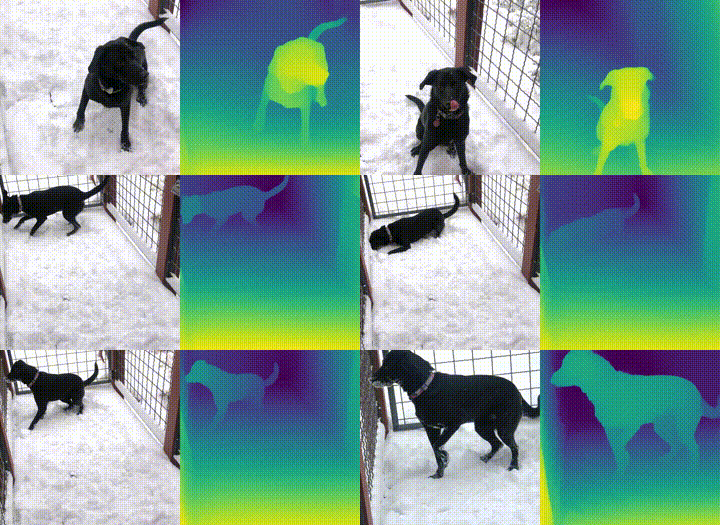
Visit the :ref:Tutorials <notebook tutorials> page for more Jupyter Notebooks to get you started with OpenVINO, such as:
OpenVINO Python API Tutorial <https://docs.openvino.ai/nightly/notebooks/002-openvino-api-with-output.html>_Basic image classification program with Hello Image Classification <https://docs.openvino.ai/nightly/notebooks/001-hello-world-with-output.html>_Convert a PyTorch model and use it for image background removal <https://docs.openvino.ai/nightly/notebooks/205-vision-background-removal-with-output.html>_
.. tab:: Get started with C++
Try the C++ Quick Start Example <openvino_docs_get_started_get_started_demos.html>_ for step-by-step instructions on building and running a basic image classification C++ application.
.. image:: https://user-images.githubusercontent.com/36741649/127170593-86976dc3-e5e4-40be-b0a6-206379cd7df5.jpg :width: 400
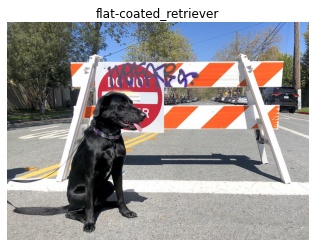
Visit the :ref:Samples <code samples> page for other C++ example applications to get you started with OpenVINO, such as:
Basic object detection with the Hello Reshape SSD C++ sample <openvino_inference_engine_samples_hello_reshape_ssd_README.html>_Automatic speech recognition C++ sample <openvino_inference_engine_samples_speech_sample_README.html>_
To uninstall the toolkit, follow the steps on the :doc:Uninstalling page <openvino_docs_install_guides_uninstalling_openvino>.
Additional Resources ####################
- :ref:
Troubleshooting Guide for OpenVINO Installation & Configuration <troubleshooting guide for install> - Converting models for use with OpenVINO™: :ref:
Model Optimizer User Guide <deep learning model optimizer> - Writing your own OpenVINO™ applications: :ref:
OpenVINO™ Runtime User Guide <deep learning openvino runtime> - Sample applications: :ref:
OpenVINO™ Toolkit Samples Overview <code samples> - Pre-trained deep learning models: :ref:
Overview of OpenVINO™ Toolkit Pre-Trained Models <model zoo> - IoT libraries and code samples in the GitHUB repository:
Intel® IoT Developer Kit <https://github.com/intel-iot-devkit>__ - :ref:
OpenVINO Installation Selector Tool <https://www.intel.com/content/www/us/en/developer/tools/openvino-toolkit/download.html>
@endsphinxdirective