 0c0fed2484
* Clarification, update links, organize

* add nfs warning, fix debian version

* add ENOSPC troubleshooting

* add more enospc detail

* add note on editing username

* Documentation typo/grammar cleanup part 9

* grammar cleanup v10

* grammar editing v10

* grammar updates v11

* Grammar updates v11

* Lucky #13 (grammar updates)

* grammar updates v14

* grammar updates v15
64 lines
2.1 KiB
Markdown
64 lines
2.1 KiB
Markdown
# CloudInit
|
|
|
|
> CloudInit support is available in the 4.11 release and higher
|
|
|
|
Cloud-init is a program "that handles the early initialization of a cloud instance"[^n]. In other words, you can, on a "cloud-init"-ready template VM, pass a lot of data at first boot:
|
|
|
|
* setting the hostname
|
|
* add ssh keys
|
|
* automatically grow the file system
|
|
* create users
|
|
* and a lot more!
|
|
|
|
This tool is pretty standard and used everywhere. A lot of existing cloud templates are using it.
|
|
|
|
So it means very easily customizing your VM when you create it from a compatible template. It brings you closer to the "instance" principle, like in Amazon cloud or OpenStack.
|
|
|
|
## Requirements
|
|
|
|
You only need to use a template of a VM with CloudInit installed inside it. [Check this blog post to learn how to install CloudInit](https://xen-orchestra.com/blog/centos-cloud-template-for-xenserver/).
|
|
|
|
## Usage
|
|
|
|
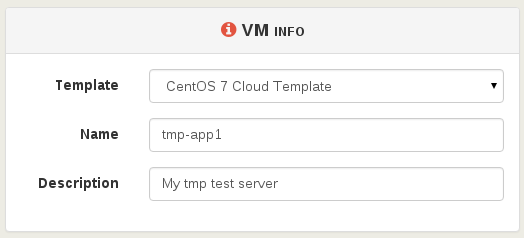
First, select your compatible template (CloudInit ready) and name it:
|
|
|
|
|
|
|
|
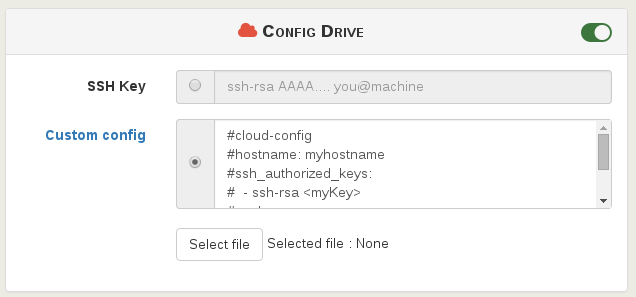
Then, activate the config drive and insert your SSH key. Or you can also use a custom CloudInit configuration:
|
|
|
|
|
|
|
|
> CloudInit configuration examples are [available here](http://cloudinit.readthedocs.org/en/latest/topics/examples.html).
|
|
|
|
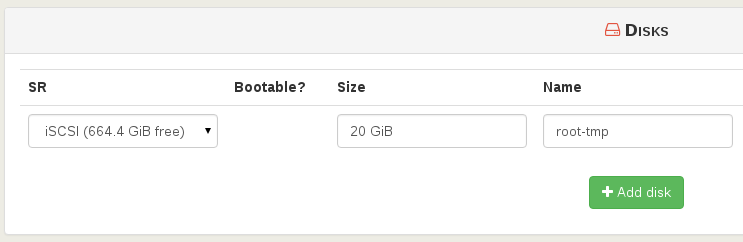
You can extend the disk size (**in this case, the template disk was 8 GiB originally**):
|
|
|
|
|
|
|
|
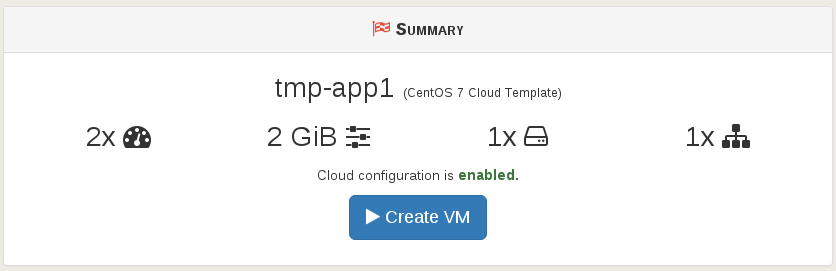
Finally, create the VM:
|
|
|
|
|
|
|
|
Now start the VM and SSH to its IP:
|
|
|
|
* **the system has the right VM hostname** (from VM name)
|
|
* you don't need to use a password to access it (thanks to your SSH key):
|
|
|
|
```
|
|
$ ssh centos@192.168.100.226
|
|
[centos@tmp-app1 ~]$
|
|
```
|
|
|
|
The default `cloud-init` configuration can allow you to be to be a sudoer directly:
|
|
|
|
```
|
|
[centos@tmp-app1 ~]$ sudo -s
|
|
[root@tmp-app1 centos]#
|
|
```
|
|
|
|
Check the root file system size: indeed, **it was automatically increased** to what you need:
|
|
|
|
```
|
|
[centos@tmp-app1 ~]$ df -h
|
|
/dev/xvda1 20G 1,2G 18G 6% /
|
|
```
|